

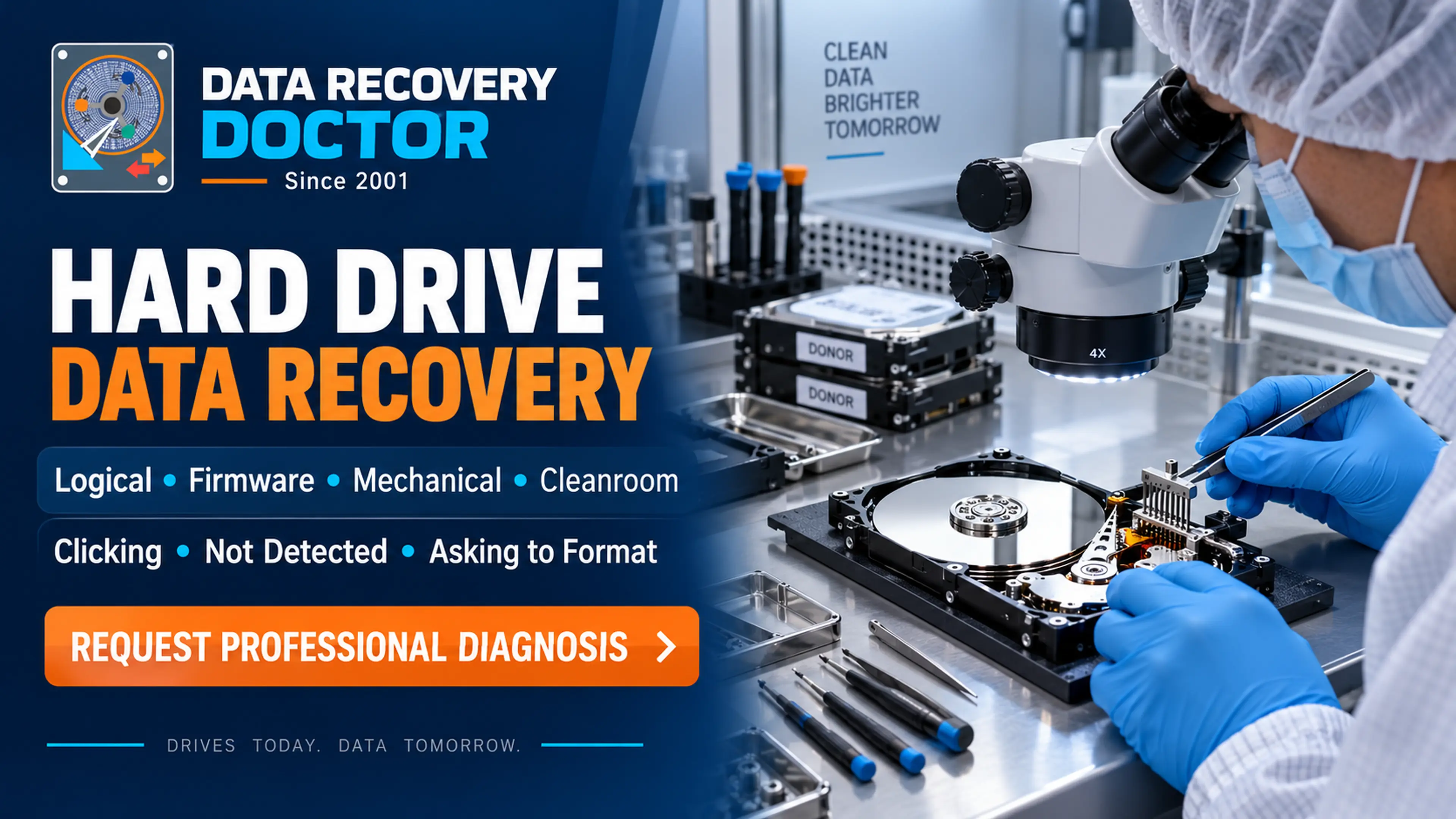
New persistent hard clicking, grinding, or scraping—especially with missing files, repeated disconnection, or a drive that will not start—deserves prompt assessment. Stop using a drive showing these failure signs. Do not keep powering it to record the noise or try a recovery scan. Some ordinary HDD clicks are normal, so the sound and the drive’s behaviour must be considered together.
A clicking hard drive can be worrying when it holds business records, wedding photographs, or a family archive. The useful question is not just “Does it click?” It is “Has the sound changed, can the drive still be accessed reliably, and what happened before the problem?” This guide helps you describe the symptoms and preserve the original media while arranging the right next step.
Not every hard-drive click means failure
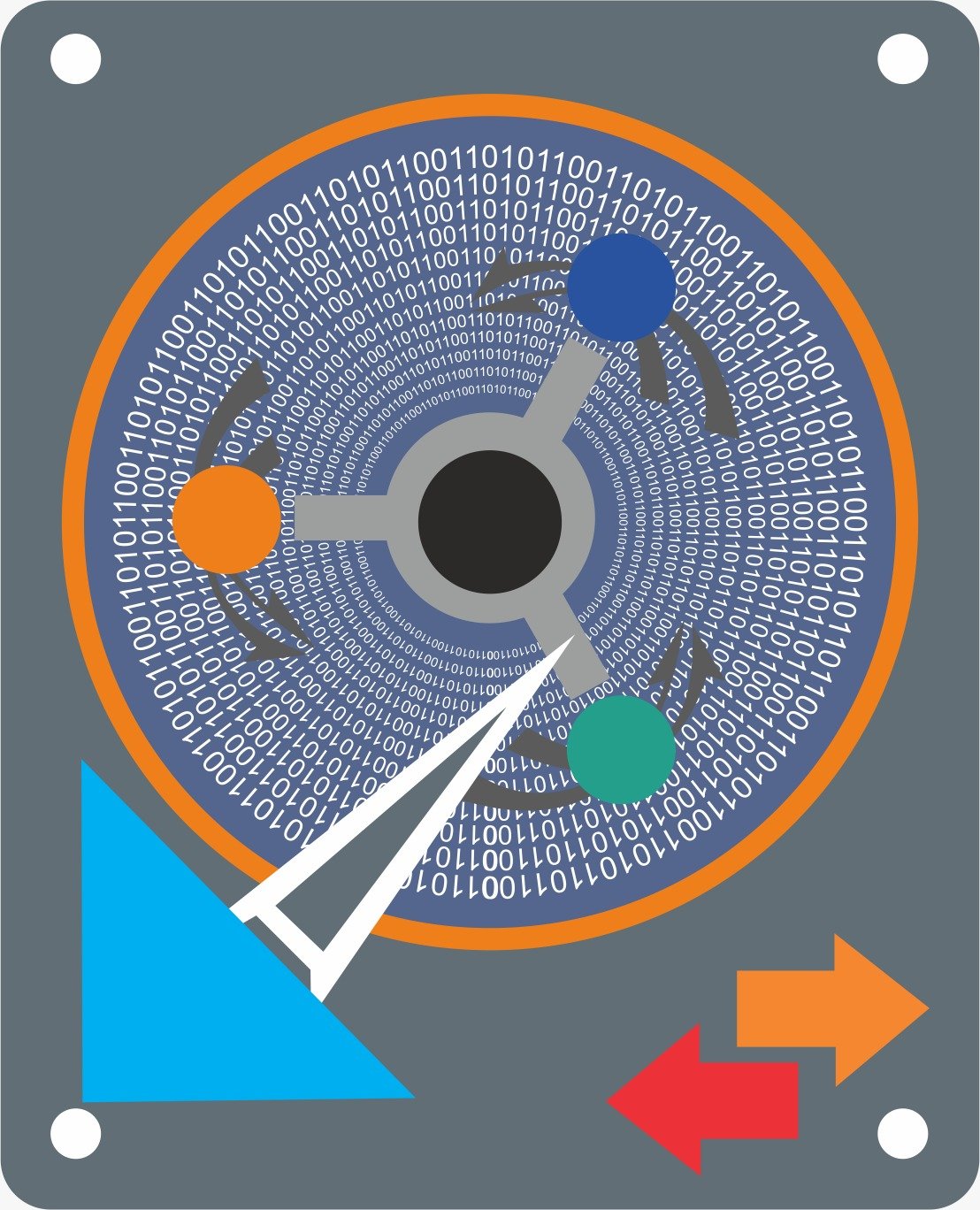
Mechanical hard drives make sounds because their platters rotate and their read/write heads move. Seagate describes normal whirring, soft activity clicks, and occasional clicks when heads park. Sound can also be amplified by the surface supporting the drive. [1] A quiet room or a different desk can therefore change what you notice without changing the drive’s condition.
That does not mean a new sound should be ignored. Compare the behaviour with how the same drive normally operates. Clicking that appears with stalled access, read errors, or repeated disappearance needs a different response from a familiar soft sound during normal activity.
Compare the sound with the symptoms
Familiar soft clicks during normal access
How to interpret it: These can be ordinary activity sounds.
Useful first response: Keep a verified separate backup and watch for changes.
A click at startup, sleep, or shutdown
How to interpret it: An isolated parking sound can be normal.
Useful first response: Judge the whole behaviour, not the click alone.
New repeated hard clicking with access trouble
How to interpret it: A potential fault needs assessment.
Useful first response: Stop unnecessary use and describe the pattern.
Grinding or scraping
How to interpret it: Continued operation can damage the platter surface.
Useful first response: Stop using the drive and request specialist advice.
Beeping or repeated spin-up attempts
How to interpret it: Power, connection, or another fault may be involved.
Useful first response: Record the device and setup; avoid repeated experiments.
Noise from a RAID or NAS enclosure
How to interpret it: Several drives, fans, or the enclosure may be involved.
Useful first response: Involve the administrator before changing the array.
Seagate warns that grinding can indicate physical damage and recommends powering down to avoid worsening it. Repeated tapping or clicking can also be associated with abnormal operation. [2] A short audio clip or a symptom table cannot confirm which component is responsible.
What clicking can—and cannot—tell us
Repeated clicking is a symptom, not a complete diagnosis. A recovery technician may need to assess the original media, its electronics, startup behaviour, access to service information, and the incident history. Sound alone cannot establish that the heads need replacement, that the platter is damaged, or that recovery will succeed.
With portable external HDDs, an unsuitable cable or insufficient USB power can affect startup. Western Digital includes cable and power checks in its guidance for My Passport drives that click or fail to spin up. [3] These possibilities should be checked appropriately; they do not make every clicking drive a harmless cable problem.
For an important-data case with a new persistent noise, repeated swaps between computers are not a substitute for assessment. Do not improvise with a power adapter just because its plug fits. Record whether the original cable and supply were used, and let the technician decide whether a controlled connection check is appropriate.
What to do when the clicking is new
- Stop ordinary use. If there is grinding or scraping, do not continue copying, scanning, or running diagnostics on the source. [2]
- For a standalone external drive showing failure signs, stop using it and power it down. For a drive inside a computer, arrange an appropriate shutdown instead of repeated restarts.
- Keep the media still and protect it from knocks. Western Digital advises against dropping, jolting, or moving a drive during activity. [5]
- Record what happened and what you already observed. Do not reconnect it merely to reproduce the sound.
- Check separate backups from a working device and prepare a clear enquiry for the recovery laboratory.
A server or RAID/NAS system needs a system-specific decision. Contact its responsible administrator before changing power, pulling a drive, or starting a rebuild. Preserve the drive-bay order and the sequence of events; clicking does not by itself tell you which intervention is safe.
Should you copy the data before switching off?
If the sounds are familiar, the drive is behaving normally, and you have no access errors, keeping a separate backup is sensible. If it is grinding, scraping, or has new repeated hard clicking with unstable access, this article does not recommend continuing a home copy attempt. Seek advice about controlled acquisition.
A backup should be an additional copy in a separate location. Moving your only copy to another device does not leave you with a backup. Sandisk recommends copying rather than moving files and retaining the original until a separate copy is verified. [8] Check that your existing backup opens and contains the important files, using another device where possible.
Five things to avoid with a suspect HDD
- Repeated power cycles to see whether it starts “one more time.” A distressed drive should not be repeatedly restarted just to demonstrate the symptom. [4]
- Long scans or multiple recovery applications before establishing whether the media is safe to read.
- Formatting, initializing, or changing partitions while you need the original files. Seagate’s data-loss guidance advises preserving the media and avoiding these changes. [4]
- Opening the sealed HDD assembly at home, tapping it, shaking it, or trying freezer or improvised heating tricks.
- Running repair commands because Windows suggests an error fix. Sandisk warns that Check Disk can cause data loss and recommends a backup on another drive first. [6]
A recovery scan cannot replace missing physical access to the media. A repair command designed to make a file system consistent also has a different purpose from preserving everything recoverable. Explain your priority to the technician before authorizing a repair or reset.
Why opening the drive requires controlled conditions
Opening the sealed HDD assembly exposes sensitive internal parts. ACE Lab describes clean rooms or laminar workstations as a way to prevent contamination during internal recovery work. It also describes compatible donor heads and precision tools for appropriate head-related cases. [7] An ordinary desk, household gloves, or a covered box does not establish those working conditions.
Ask a laboratory why it proposes opening your drive and what its assessment has found. Internal work is not automatically required for every clicking symptom. Protect the original drive and avoid opening it just to take a photograph for an enquiry.
Does head replacement guarantee recovery?
No. Where the original heads cannot read reliably, a compatible donor assembly may be part of the recovery approach. [7] The condition of the media, the particular fault, and the ability to acquire readable data still matter. The replacement is an intervention, not proof that all customer files are intact.
Be cautious about a fixed success percentage based only on the model, the sound, or a photograph. A useful assessment should explain the findings, proposed work, uncertainty, and what verification will be possible. A repaired or temporarily readable drive should not automatically become your only storage copy again.
What a useful recovery assessment should explain
Start with a documented description of the problem and the work already attempted. The laboratory should explain the appropriate diagnostic approach, the estimate and approval terms, and whether controlled imaging is possible. Work from an acquired image when appropriate rather than repeatedly analysing the original media.
Verification should reflect the files that matter to you. A directory listing is useful, but it does not establish that every photograph, video, database, or document opens correctly. Agree on the priority files and ask how the recovered result and its limitations will be reported.
What affects the cost and turnaround?
The diagnosis, access stability, required parts or specialist work, time needed to acquire data, and file-verification requirements can affect the estimate. Clicking alone does not identify the price category. This article provides no fixed quote or completion promise without assessing the case.
Your case details
- Device type: desktop HDD, laptop HDD, external drive, or an array member.
- Brand, exact model, capacity, and a clear photograph of the accessible label.
- Incident: a drop, power event, liquid exposure, or a change during normal use.
- Sound and behaviour: familiar or new, occasional or repeated, and whether access fails.
- Previous work: copying attempts, scans, repairs, opening, cable changes, or resets.
- Priority files, verified backup status, and whether encryption is involved.
A recording that already exists can be useful context, but do not power the drive solely to make one. Keep passwords and encryption keys private until an agreed secure channel is available. If an earlier technician opened the drive, tell the laboratory before assessment.
Frequently asked questions
Can clicking be normal?
Yes. Soft activity clicks and occasional head-parking sounds can be normal. A change in the sound combined with access problems matters more than the word “clicking” alone. [1]
Does clicking always mean failed heads?
No. The symptom does not identify a component by itself. Diagnosis needs the device, its behaviour, and the incident history.
Should I keep trying a different cable or computer?
A cable or power issue is possible in some external-drive cases. [3] For new persistent noises with important data or unstable access, avoid repeated experiments and request assessment.
Can recovery software fix a grinding drive?
It cannot repair mechanical damage. Do not run repeated scans on a grinding source while trying to preserve its data.
Should I keep a noisy drive running to finish a backup?
Not when it is grinding, scraping, or showing new repeated hard clicking with unstable access. Stop and discuss a controlled acquisition approach.
Can I open the drive to check the heads?
Do not open the sealed assembly for a home inspection. Internal recovery work needs suitable contamination control and handling. [7]
Will a head swap recover every file?
No. It may help in an appropriate diagnosed case, but it does not reverse existing damage or guarantee readable file contents.
Is a warranty replacement the same as recovery?
No. If you need the files, discuss recovery before surrendering the original media. Ask what the replacement process does with the returned drive.
Discuss your clicking HDD case with DATA RECOVERY DOCTOR
Send the drive model, the incident, your observed symptoms, previous attempts, and important-file priorities through the contact channel listed on our website. Our main laboratory is in Sambhajinagar (Aurangabad), Maharashtra. Request an assessment and estimate before approving recovery work.
25 Years Experience • Since 2001
Discuss your recovery case
DATA RECOVERY DOCTOR — 25 Years Experience • Since 2001.
Specialist assessment using Advanced Data Recovery Technologies. Class 100 cleanroom facilities for physical HDD work when required. Recovery options depend on the media condition and case assessment.
Call / WhatsApp: 9325220081 / 8975620081
Email: datarecoverydoctormh@gmail.com
Lab: 1st Floor, Niwara, Near Ajmera Bhawan, Khadkeshwar, Chhatrapati Sambhajinagar (Aurangabad), Maharashtra – 431001.
Website: www.datarecoverydoctor.in
Send the device label photo, capacity and symptoms to start an enquiry. Do not include passwords or private files in the initial message.
Sources and further reading
Primary-source guidance checked on 11 October 2026.
- Seagate: Expected and unexpected hard-drive sounds
- Seagate: Internal hard-drive troubleshooter, noisy-drive guidance
- Western Digital: My Passport clicking, startup, USB cable, and power issues
- Seagate: When data loss occurs
- Western Digital: Reasons for hard-drive noise and handling precautions
- Sandisk: Check Disk data-loss warning
- Sandisk: Copying files and keeping separate backups