


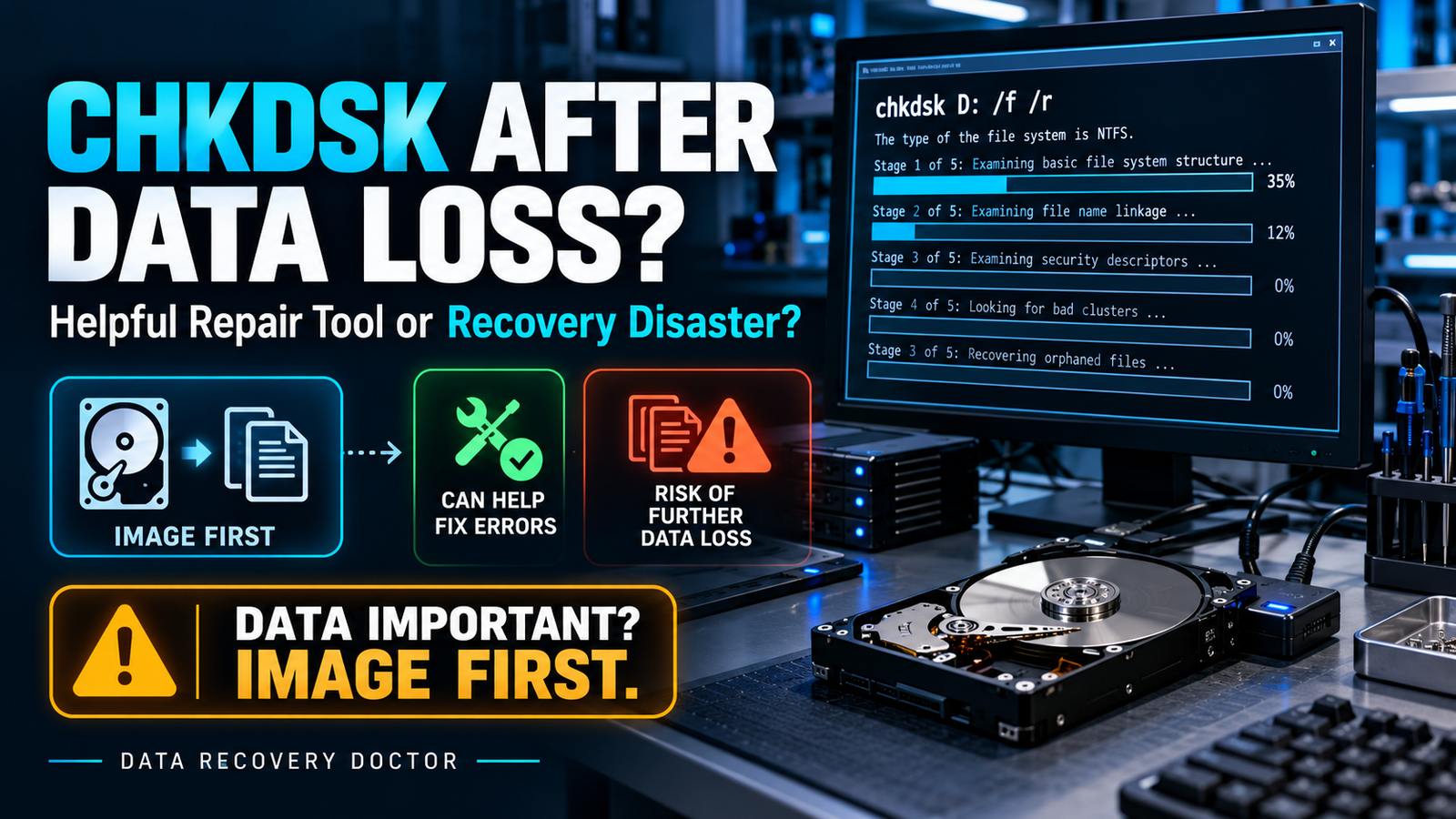
Data-Recovery Safety Guide
CHKDSK After Data Loss: Helpful Repair Tool or Recovery Disaster?
CHKDSK can repair file-system errors—but repair and recovery are not the same thing. If the files matter, the safest decision may be to protect the original drive before allowing any repair utility to change it.
Category: Hard Drive Recovery • Reading time: 7 minutes • Focus keyword: CHKDSK after data loss
Important: If the drive is clicking, disconnecting, extremely slow, showing a SMART warning or containing irreplaceable data, stop using it. Do not run repeated scans or repairs.
What CHKDSK actually does
CHKDSK is a Windows file-system checking utility. It examines the file system and its metadata for logical and physical errors. Used without repair parameters, it reports the volume’s status. With options such as /f or /r, it changes the volume in an attempt to correct errors.
chkdsk D:checks and reports the status without requesting repairs.chkdsk D: /ffixes detected file-system errors.chkdsk D: /rincludes/f, searches for bad sectors and attempts to recover readable information.
This makes CHKDSK useful for file-system maintenance. It does not, however, work like a forensic recovery tool. Its priority is to make the file system internally consistent—not to preserve every previous filename, folder relationship or deleted record.
Why CHKDSK can sometimes help
On a hardware-healthy drive, CHKDSK may correct logical damage caused by an unsafe shutdown, interrupted write, minor directory corruption or a dirty file-system flag. When a verified backup already exists, repairing the affected volume may be a reasonable troubleshooting step.
Appropriate situation: the storage device is healthy, the data is backed up, the problem is confirmed as logical, and you accept that the repair will modify the volume.
Why it may reduce recovery chances
Running a repair command on the only copy of important data carries two different risks.
1. It writes changes to the file system
Repairing indexes, allocation records, directory entries and orphaned chains may alter evidence that specialised recovery software could otherwise use to reconstruct the original folder structure. Microsoft’s documentation notes that repair operations modify disk structures and that some FAT repairs can result in data loss.
2. A physically failing drive may deteriorate during the scan
The /r option performs extensive reading to locate bad sectors. A healthy drive can normally tolerate this. A mechanically unstable or rapidly degrading drive may not. Repeated reads, time-outs and retries can increase stress while the device is still being used as the only source.
3. “Fixed” does not necessarily mean “all files recovered”
CHKDSK may restore a mountable volume while some files remain missing, renamed, fragmented or placed into recovery folders. A successful completion message therefore does not prove that every important file is intact.
The professional principle: stabilise and image the source first; attempt file-system repair on a clone or working copy—not on the only original.
Do not run CHKDSK when you see these warning signs
- Clicking, beeping or repeated spin-up/spin-down: possible mechanical failure.
- The drive keeps disconnecting: possible media, head, power or interface instability.
- Extremely slow access or freezing: often associated with unreadable sectors or firmware problems.
- SMART warning, pending sectors or uncorrectable errors: the hardware requires controlled imaging.
- The volume appears RAW, unallocated or asks to be formatted: the original file-system metadata may be damaged.
- The data is unique and valuable: customer records, Tally data, photographs, project files, CCTV footage or business databases should not be used for trial-and-error repairs.
Quick decision guide
SituationShould you run CHKDSK?Safer actionHealthy drive, current backup, minor shutdown errorPossibly, after confirming the backupCheck hardware health, then repair if appropriateDrive clicking, freezing or disconnectingNoPower off and arrange controlled diagnosis/imagingRAW or unallocated volume with important filesNoCreate a sector-level image before logical reconstructionBad sectors or SMART warningsNo on the originalImage readable areas first using recovery hardware/toolsVerified clone or image is availableRepair may be tested on a working copyKeep the master image unchanged
The safer professional workflow
- Stop write activity. Do not format, initialise, defragment or install recovery software on the affected drive.
- Record the symptoms. Note noises, error messages, disconnects and what happened before the failure.
- Assess hardware health. A repair decision should follow—not precede—the hardware assessment.
- Create a sector-level image or clone. Good sectors are captured first, with controlled handling of slow or unreadable areas.
- Preserve the master copy. Recovery and repair attempts are performed on another copy whenever possible.
- Validate important files. A directory listing alone does not confirm file integrity.
What if CHKDSK is already running?
Do not panic. Microsoft advises that interrupting CHKDSK is generally not recommended. The safest response depends on the drive’s condition, the stage of the operation and whether physical-failure symptoms are present. Avoid repeatedly restarting CHKDSK or launching additional repair tools. Record what command was used and any messages displayed, then seek advice before making another change.
What if CHKDSK has already completed?
- Do not save new files to the affected drive.
- Do not run CHKDSK repeatedly hoping for a different result.
- Check whether folders or filenames have changed, but avoid extensive browsing on an unstable device.
- Preserve any CHKDSK or Wininit log information.
- Explain exactly what was run when submitting the device for recovery.
Frequently asked questions
Does CHKDSK recover deleted files?
No. CHKDSK repairs file-system consistency. It is not designed as a deleted-file recovery tool.
Can CHKDSK repair bad sectors?
The /r option identifies bad sectors within the file-system context and attempts to recover readable information. It cannot physically repair damaged media.
Should I run CHKDSK on a RAW drive?
Not when the data matters. A RAW condition can result from damaged metadata or failing hardware. Image the source first and diagnose the cause.
Is read-only CHKDSK completely risk-free?
It avoids requested file-system repairs, but it still reads the device. Extensive reading can be inappropriate for an unstable physical drive.
Why do professionals image the drive first?
An image preserves the readable state of the source. Recovery work can then be repeated on copies without continually exposing the original drive to repair attempts.
Important files on the affected drive?
Stop experimenting and preserve the original media. DATA RECOVERY DOCTOR can assess whether the problem is logical, firmware-related, electronic or mechanical before a recovery plan is started.
Request a professional diagnosis →
Related guides
- Lost Data? What to Do in the First 30 Minutes
- Hard Drive Clicking? What It Can Mean and What to Do Next
Technical references
- Microsoft Learn — CHKDSK command documentation
- GNU ddrescue Manual — safe handling and imaging of failing drives
Disclaimer: This article provides general educational guidance. The correct action depends on the device, symptoms and value of the data.